Understanding Alice in Wonderland: Symbolism, Themes & Hidden Meanings Explained
Core: Alice's Adventures in Wonderland is a profound meta-commentary on reading itself—deconstructing our expectations of logic, meaning, and authority in texts while celebrating the subjective, imaginative, and connective power of stories.
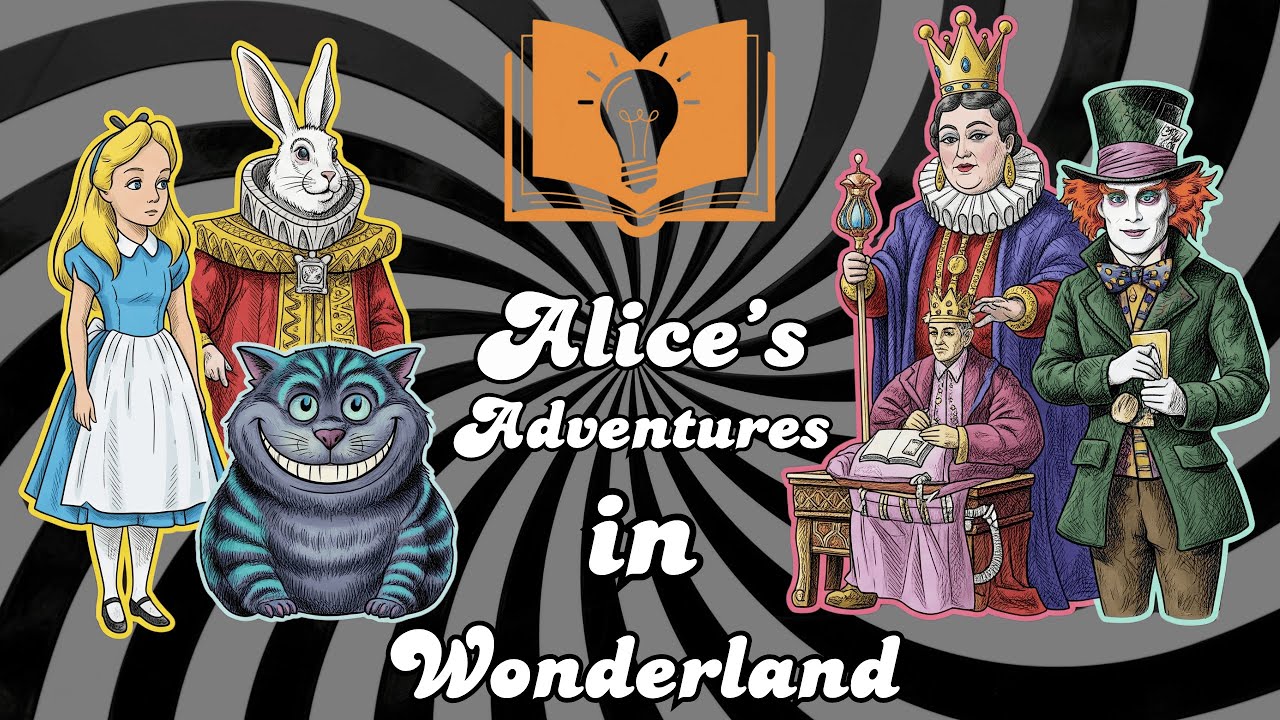
The work
- Title: Alice's Adventures in Wonderland — Lewis Carroll
- Coverage: A deep dive into the symbolism, themes, and hidden meanings throughout the entire story, focusing on its commentary on reading and knowledge.
The work's central argument
Books are not just passive vessels of information; they are active invitations to imaginative co-creation, critical engagement, and generational connection.
- The Utility of Books and Engagement — 01:50 The book immediately questions the fundamental purpose of texts that lack direct engagement, reflecting a universal human desire for visual stimulation and interactive 'conversation' beyond mere words on a page.
- Example: Alice's famous opening query, "What is the use of a book without pictures or conversation?" sets up the tension between passive reading and active engagement. The video shows how this line captures the human craving for books that stimulate, provoke, and interact rather than merely instruct.
- The Fragility of Rote Knowledge and Logic — 04:30 Wonderland's chaotic environment systematically undermines Alice's memorized academic knowledge and the logical frameworks she takes for granted, demonstrating that uncritical, rote learning is fragile and impractical when contexts drastically shift.
- Example: Alice incorrectly recites her multiplication tables ("4 × 5 is 12, and 4 × 6 is 13") and geography ("London is the capital of Paris"). These failures reveal that memorization without understanding collapses when familiar frameworks no longer apply. She even questions her own identity: "I must have been changed for Mabel."
- Instability of Fixed Texts and Interpretation — 05:40 Carroll deliberately distorts familiar texts and manipulates textual presentation to highlight how easily meaning can be altered and how the form of a book influences understanding, revealing the subjective and fluid nature of textual engagement.
- Example: Parodies of nursery rhymes transform "How doth the little busy bee" into "the little crocodile improve his shining tail." The Mouse's "long and a sad tale" is literally printed in a wiggly, tail-like shape, showing that typography and visual form directly impact interpretation. Alice herself declares the recitations "wrong from beginning to end."
- The Challenge of Meaning and Absurdity — 07:30 The narrative confronts the reader's innate desire for clear answers and logical conclusions, embracing absurdity and presenting questions without neat resolutions as an integral part of the textual experience.
- Example: The Hatter's unanswerable riddle, "Why is a raven like a writing desk?", frustrates Alice's need for closure. The video emphasizes: "Understanding a book isn't always about finding the answer. Sometimes it's about appreciating the question or the deliberate lack of an answer."
- The Imposition of Meaning and Moralizing — 08:50 The character of the Duchess acts as a parody of the human tendency to force a singular moral or simplistic meaning onto complex situations, often twisting logic to fit a predetermined lesson or 'takeaway.'
- Example: The Duchess's relentless moralizing connects flamingos and mustard to "birds of a feather flock together," despite the clear illogicality. Her convoluted moral—"Be what you would seem to be"—spirals into incomprehensibility, warning against oversimplifying complex texts and ignoring their contradictions.
- Questioning Authority and Arbitrary Rules — 10:00 The arbitrary and often nonsensical rules enforced by Wonderland's rulers expose the illogical, self-serving, and easily manipulated nature of authority, prompting readers to critically scrutinize claims of power and tradition in any text.
- Example: The Queen of Hearts' constant decree of "Off with their heads!" and the King inventing "rule 42" on the spot to silence dissent. Carroll satirizes how power can be wielded through tradition's mere appearance, urging readers to examine the source, context, and legitimacy of any authoritative text—whether legal documents, scientific papers, or news reports.
- Subjectivity of Interpretation and Bias — 11:00 The trial of the Knave of Hearts vividly illustrates how personal biases and agendas can lead to the imposition of desired meaning onto ambiguous texts, highlighting that interpretation is an active, subjective act rather than a passive discovery.
- Example: The King desperately twists nonsensical verses into evidence of the Knave's guilt, while Alice correctly identifies "not an atom of meaning in it." The video asks: Is meaning inherent in text, or do we bring it? Different readers, with different goals and biases, will extract vastly different understandings.
- Reader Liberation and Agency — 12:00 Alice's defiant outburst represents the reader's ultimate assertion of intellectual independence and critical judgment against perceived textual authority.
- Example: "Who cares for you? You're nothing but a pack of cards!" This moment symbolizes the reader finally taking control, refusing to be bound by nonsensical rules or paper-thin authority. True understanding requires recognizing limitations or falsehoods in a text and having the courage to question, disagree, and assert one's own judgment.
- Reading as Internal Creation — 12:30 The revelation that Wonderland was Alice's dream reframes reading as an internal, imaginative act where the reader actively co-creates the story's reality.
- Example: Carroll provides the words; the reader visualizes and constructs the narrative's reality. This explains why stories feel real and why they stick with us—our imagination makes them part of our internal landscape.
- The Lasting Imprint of Stories — 13:20 Literature leaves a permanent mark, subtly altering perception and fostering generational connections through shared imagination.
- Example: Alice's sister dreams of Wonderland, transforming its sounds into everyday farm noises. The story has filtered through her consciousness, coloring her reality. The video concludes that the deepest understanding of books lies in how they weave into the fabric of our lives, linking generations through wonder, reflection, and connection.
Visual: A vibrant illustration of Alice floating amidst a chaotic ar… — 2:39 ▶
Visual: An illustration of the Queen of Hearts in a dramatic pose, s… — 7:25 ▶
Visual: An illustration of Alice's sister, with closed eyes, dreamin… — 11:52 ▶
Passages from the work
"What is the use of a book without pictures or conversation?"
"4 × 5 is 12, and 4 × 6 is 13."
"London is the capital of Paris."
"I must have been changed for Mabel."
"How doth the little busy bee become the little crocodile improve his shining tail?"
"It is wrong from beginning to end."
"Why is a raven like a writing desk?"
"The moral of that is birds of a feather flock together."
"Be what you would seem to be."
"Off with their heads."
"All persons more than a mile high to leave the court."
"I don't believe there's an atom of meaning in it."
"Who cares for you? You're nothing but a pack of cards."
The reviewer's take (not the work's content)
- 💬 The video interprets Alice's Adventures in Wonderland as a sophisticated meta-commentary on the entire process of reading and engaging with texts, extending far beyond a simple children's fantasy.
- 💬 It argues that Lewis Carroll's work actively challenges readers to critically examine their preconceived notions about what a book should offer, such as logical consistency, clear answers, or singular meanings.
- 💬 The analysis highlights the book's role in promoting critical thinking, questioning perceived authority, and acknowledging the inherently subjective nature of textual interpretation.
- 💬 The video posits that Alice's journey, culminating in her confident rejection of Wonderland's arbitrary rules, symbolizes the reader's liberation and assertion of intellectual agency when engaging with a text.
- 💬 The ending, where Alice wakes from her dream and her sister then dreams of Wonderland, is interpreted as a profound statement on reading as co-creation—an internal, imaginative act—and how stories leave an enduring imprint on our perception and connect generations.
Apply it
- When approaching any book, take a moment to reflect on your personal expectations and biases, considering how they might influence your interpretation of the text.
- Actively engage with the content by questioning the logic, underlying assumptions, stated meanings, and authority of the voice presenting the information, rather than passively accepting it.
- Be mindful of whether you are genuinely deriving meaning from the text or inadvertently imposing your own pre-existing beliefs, agendas, or desired outcomes onto the narrative.
- Recognize that reading is an imaginative, co-creative process; your mind actively constructs the world and experience of the story based on the author's prompts.
- Consider how any story or text you encounter might subtly alter your perspective, change your understanding, or influence how you perceive the world around you, long after you've finished reading.
Related concepts
- Lewis Carroll
- Alice's Adventures in Wonderland
- meta-commentary
- reader-response theory
- critical reading
- textual interpretation
- subjective meaning
- literary authority
- reading as co-creation
- Victorian literature
- nonsense literature
- children's literature
- narrative authority
- parody
Key timestamps
- 00:00 — Introduction: Alice in Wonderland as a guide to understanding books.
- 01:50 — Alice's initial expectation: "What is the use of a book without pictures or conversation?"
- 03:30 — The failure of external logic: Books as anchors in chaos, but rules fail.
- 04:30 — The crumbling of learned knowledge: Multiplication tables and geography fail.
- 05:40 — Instability of fixed texts: Parodies of nursery rhymes.
- 06:40 — Slippery meaning: The mouse's tale and visual text.
- 07:30 — Challenging meaning: The Mad Tea Party's unanswerable riddle.
- 08:50 — Imposing meaning: The Duchess's relentless moralizing.
- 10:00 — Questioning authority: Arbitrary rules of the Queen and King.
- 11:00 — Subjective interpretation: The trial of the Knave of Hearts.
- 12:00 — Alice's liberation: Rejecting Wonderland's flimsy authority.
- 12:30 — Reading as creation: Wonderland as Alice's internal dream.
- 13:20 — Lasting imprint: The story's effect on Alice's sister.
- 14:10 — Conclusion: Books enrich lives through wonder, reflection, and connection.